Reading RPLS is free for the whole profession. Members post, reply, and get the members-only rooms.


Notifications
Clear all

Topic starter
Translate
▼
English
Spanish
French
German
Italian
Portuguese
Russian
Chinese
Japanese
Korean
Arabic
Hindi
Dutch
Polish
Turkish
Vietnamese
Thai
Swedish
Danish
Finnish
Norwegian
Czech
Hungarian
Romanian
Greek
Hebrew
Indonesian
Malay
Ukrainian
Bulgarian
Croatian
Slovak
Slovenian
Serbian
Lithuanian
Latvian
Estonian
When using Civil3D and creating a Point Style, you are given the option to use the drawing scale size in inches.
Couple of questions:
1. I assume the scale is a reference to paperspace size. Correct?
2. How and what is being scaled/sized to be the size?
-Scott B.
Posted : February 14, 2017 6:12 pm

Translate
▼
English
Spanish
French
German
Italian
Portuguese
Russian
Chinese
Japanese
Korean
Arabic
Hindi
Dutch
Polish
Turkish
Vietnamese
Thai
Swedish
Danish
Finnish
Norwegian
Czech
Hungarian
Romanian
Greek
Hebrew
Indonesian
Malay
Ukrainian
Bulgarian
Croatian
Slovak
Slovenian
Serbian
Lithuanian
Latvian
Estonian
The symbol you choose to mark the node location. The text size for the labels would be set up under the label style settings. It will scale to whatever you view your are currently in is set to be it model space or papers space. We are still on 2010 but I assume it's still that way in the latest versions.
Posted : February 14, 2017 6:33 pm
Topic starter
Translate
▼
English
Spanish
French
German
Italian
Portuguese
Russian
Chinese
Japanese
Korean
Arabic
Hindi
Dutch
Polish
Turkish
Vietnamese
Thai
Swedish
Danish
Finnish
Norwegian
Czech
Hungarian
Romanian
Greek
Hebrew
Indonesian
Malay
Ukrainian
Bulgarian
Croatian
Slovak
Slovenian
Serbian
Lithuanian
Latvian
Estonian
PA PLS,
So,
(1) if I would change the drawing scale to 1"=1" and make a block that is 0.1 units wide and long (think rectangular drainage grate),
(2) then whenever I use this block in model space, it will be 0.1" in paperspace based on the paperspace viewport scale.
Correct?
Thanks,
Scott B.
Posted : February 14, 2017 6:51 pm
Translate
▼
English
Spanish
French
German
Italian
Portuguese
Russian
Chinese
Japanese
Korean
Arabic
Hindi
Dutch
Polish
Turkish
Vietnamese
Thai
Swedish
Danish
Finnish
Norwegian
Czech
Hungarian
Romanian
Greek
Hebrew
Indonesian
Malay
Ukrainian
Bulgarian
Croatian
Slovak
Slovenian
Serbian
Lithuanian
Latvian
Estonian
Honestly, I have yet to create a block on my own, just use the standard ones we have on the server at the office. I don't think it matters what the scale of the drawing is when you create the block, only the size you draw it at. Once you reference it in your point style setup, it will adjust the size of the block dependent on the current drawing scale. If you're at 1"=20' in model space, then switch to a paperspace veiwport set at 1" = 40', the block will appear half the size. It works like annotative text if you use that.
Posted : February 14, 2017 7:01 pm

Translate
▼
English
Spanish
French
German
Italian
Portuguese
Russian
Chinese
Japanese
Korean
Arabic
Hindi
Dutch
Polish
Turkish
Vietnamese
Thai
Swedish
Danish
Finnish
Norwegian
Czech
Hungarian
Romanian
Greek
Hebrew
Indonesian
Malay
Ukrainian
Bulgarian
Croatian
Slovak
Slovenian
Serbian
Lithuanian
Latvian
Estonian
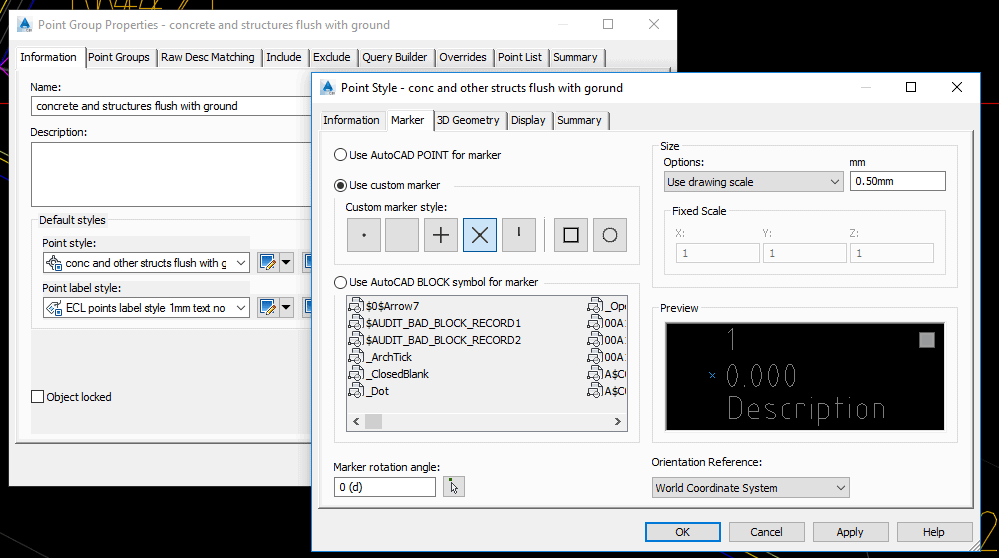
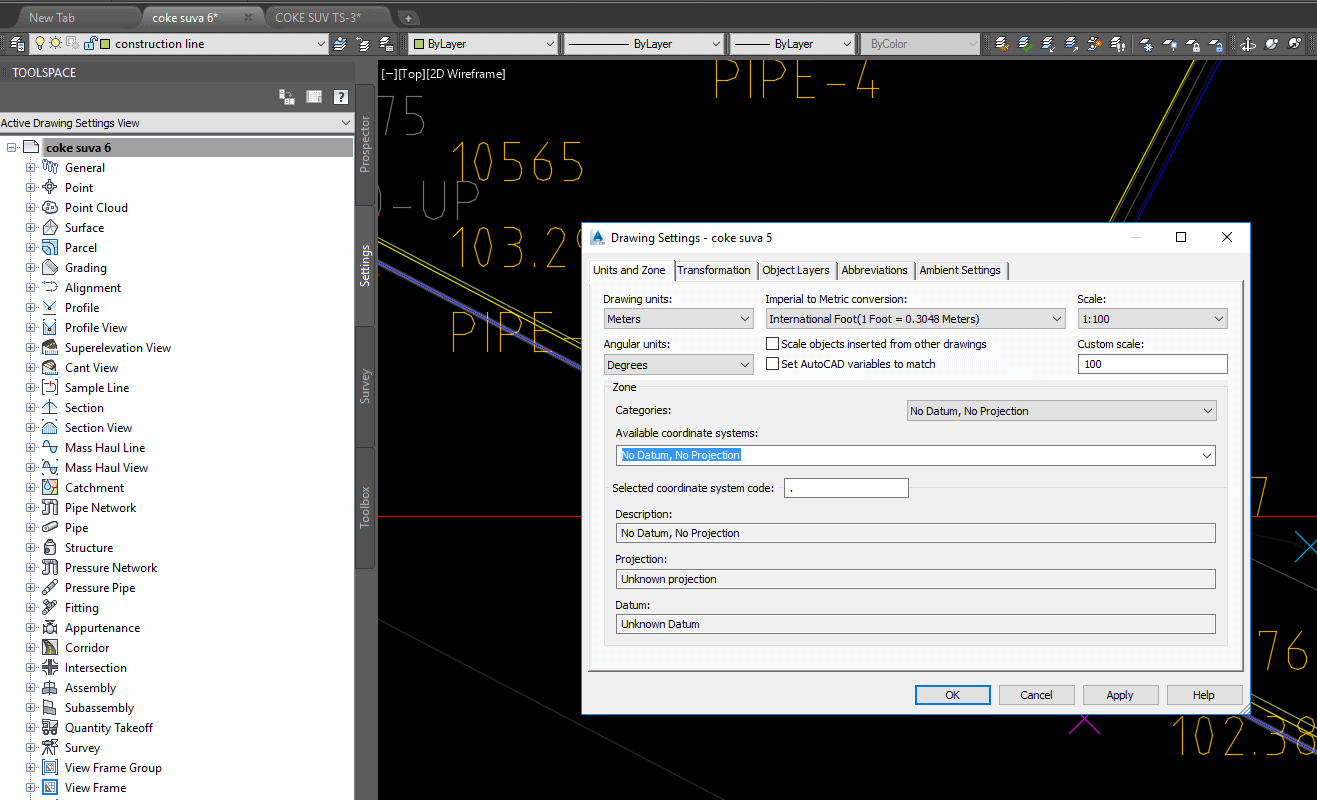
I think it is related to the drawing setting scale:
Posted : February 14, 2017 7:28 pm

Translate
▼
English
Spanish
French
German
Italian
Portuguese
Russian
Chinese
Japanese
Korean
Arabic
Hindi
Dutch
Polish
Turkish
Vietnamese
Thai
Swedish
Danish
Finnish
Norwegian
Czech
Hungarian
Romanian
Greek
Hebrew
Indonesian
Malay
Ukrainian
Bulgarian
Croatian
Slovak
Slovenian
Serbian
Lithuanian
Latvian
Estonian
Scott Bordenet, post: 414115, member: 10097 wrote: PA PLS,
So,
(1) if I would change the drawing scale to 1"=1" and make a block that is 0.1 units wide and long (think rectangular drainage grate),
(2) then whenever I use this block in model space, it will be 0.1" in paperspace based on the paperspace viewport scale.Correct?
The short answer toyour question is yes, but......getting the block to appear at the right size in paper space (at whatever scale) is controlled by a couple of different factors. Is the block annotative? Is the point style set to fixed scale or drawing scale?
IMHO, the best way to create a point style is to create a NON annotative block at 1:1 scale. Test how it looks by creating a 1:1 viewport and test print it (so you know what it will look like printed by YOUR printers). Once you are happy with it, assign to the point style. Now you can control the scaling effect of the block through the style editor (shown in a screen shot in the post above this one).
The advantages of doing it this way are:
1. Non annotative blocks don't have to have specific scales associated with them to be visible in viewports.
2. you can "Cap" the scaling effect for certain blocks. For instance, a small symbol for a water meter may look good at 20 scale - but at 100 scale it can show up as wider than the sidewalk itself. So for that specific symbol, you can use absolute units or a fixed scale.
3. All your blocks will be consistent. You insert them into other drawings (your older drawings, or from a client, etc..)and wont have weird scaling issues.
Does that answer your question?
Posted : February 17, 2017 12:34 pm
Topic starter
Translate
▼
English
Spanish
French
German
Italian
Portuguese
Russian
Chinese
Japanese
Korean
Arabic
Hindi
Dutch
Polish
Turkish
Vietnamese
Thai
Swedish
Danish
Finnish
Norwegian
Czech
Hungarian
Romanian
Greek
Hebrew
Indonesian
Malay
Ukrainian
Bulgarian
Croatian
Slovak
Slovenian
Serbian
Lithuanian
Latvian
Estonian
Trundle - thanks for the reply. Yes, I get it.
I would rather be able use an dyanmic (and annotative) block that would allow me to grab a grip and rotate/scale it. So, I think I should have civil3D insert blocks when I import a fieldbook file as opposed to using blocks with point styles. Civil3D will use dynamic/annotative blocks in this way, right?
Posted : February 17, 2017 6:32 pm
Translate
▼
English
Spanish
French
German
Italian
Portuguese
Russian
Chinese
Japanese
Korean
Arabic
Hindi
Dutch
Polish
Turkish
Vietnamese
Thai
Swedish
Danish
Finnish
Norwegian
Czech
Hungarian
Romanian
Greek
Hebrew
Indonesian
Malay
Ukrainian
Bulgarian
Croatian
Slovak
Slovenian
Serbian
Lithuanian
Latvian
Estonian
Scott Bordenet, post: 414710, member: 10097 wrote: Trundle - thanks for the reply. Yes, I get it.
I would rather be able use an dyanmic (and annotative) block that would allow me to grab a grip and rotate/scale it. So, I think I should have civil3D insert blocks when I import a fieldbook file as opposed to using blocks with point styles. Civil3D will use dynamic/annotative blocks in this way, right?
Civil 3D can use any type of block (I just prefer non annotative for the reasons above). But annotative and dynamic blocks can be used as well.
When you import a field book, you still need to set up point styles (the block will get inserted at a point) and a descriptor key (that tells C3D which point styles to use with which points).
But yes, you can use any block in the "point style", and have as many point styles as you want. The descriptor key will assign a point style to a point (based on the point code), but these can be changed manually at any time.
All points imported into a C3D drawing will have a point style, even if it is just a small x (like a spot electric action) or set to show nothing (which I recommend against).
Posted : February 17, 2017 7:40 pm
Topic starter
Translate
▼
English
Spanish
French
German
Italian
Portuguese
Russian
Chinese
Japanese
Korean
Arabic
Hindi
Dutch
Polish
Turkish
Vietnamese
Thai
Swedish
Danish
Finnish
Norwegian
Czech
Hungarian
Romanian
Greek
Hebrew
Indonesian
Malay
Ukrainian
Bulgarian
Croatian
Slovak
Slovenian
Serbian
Lithuanian
Latvian
Estonian
Trundle, I don't want a block in the point style. An "X" or "+" sign is fine. I want an independent block inserted on top of (or below) the point node (x/+).
Posted : February 17, 2017 7:44 pm
Translate
▼
English
Spanish
French
German
Italian
Portuguese
Russian
Chinese
Japanese
Korean
Arabic
Hindi
Dutch
Polish
Turkish
Vietnamese
Thai
Swedish
Danish
Finnish
Norwegian
Czech
Hungarian
Romanian
Greek
Hebrew
Indonesian
Malay
Ukrainian
Bulgarian
Croatian
Slovak
Slovenian
Serbian
Lithuanian
Latvian
Estonian
If you don't want to use point styles or descriptor keys, then you'll have to manually put the block on each point by clicking them. The only other way would be to create some custom script (which is well beyond my area of expertise).
But to have blocks come in with a point -atomatically- then creating a point style/descriptor key is the easiest, fastest, most intuitive way.b
Posted : February 18, 2017 9:57 am

Translate
▼
English
Spanish
French
German
Italian
Portuguese
Russian
Chinese
Japanese
Korean
Arabic
Hindi
Dutch
Polish
Turkish
Vietnamese
Thai
Swedish
Danish
Finnish
Norwegian
Czech
Hungarian
Romanian
Greek
Hebrew
Indonesian
Malay
Ukrainian
Bulgarian
Croatian
Slovak
Slovenian
Serbian
Lithuanian
Latvian
Estonian
Sincpac has a command for extracting the blocks from a point style. You could have the description key set insert the blocks, sincpac extract them, and then change all the point styles to a simple x. Seems like an awful lot of work to get around how civil 3d is set up to work,
Posted : February 18, 2017 12:42 pm

Translate
▼
English
Spanish
French
German
Italian
Portuguese
Russian
Chinese
Japanese
Korean
Arabic
Hindi
Dutch
Polish
Turkish
Vietnamese
Thai
Swedish
Danish
Finnish
Norwegian
Czech
Hungarian
Romanian
Greek
Hebrew
Indonesian
Malay
Ukrainian
Bulgarian
Croatian
Slovak
Slovenian
Serbian
Lithuanian
Latvian
Estonian
Points/Point Labels and their implementation in Civil 3d is IMHO one of it's worst aspects. Although well intentioned they are just cumbersome and seldom function exactly as you expect. For the most part I have come to a truce with this issue. I am constantly frustrated by the fact that they are only semi-annotative, meaning that they will rescale based on the current view/viewport scale but will not allow for alternative location/rotation and do not respond to the annotation scale property of the viewport like annotative objects do in vanilla autocad. For this reason I have developed a strategy of using description keys to insert the points/labels and then using SINCPAC to replace the symbols and labels with blocks and multileaders (which are annotative) to do this the blocks that are referenced in the point style must be annotative. From there I can move, rotate, or scale the symbol block relative to separate individual view scales all without affecting the location of the actual point.
Posted : February 20, 2017 6:08 am

Translate
▼
English
Spanish
French
German
Italian
Portuguese
Russian
Chinese
Japanese
Korean
Arabic
Hindi
Dutch
Polish
Turkish
Vietnamese
Thai
Swedish
Danish
Finnish
Norwegian
Czech
Hungarian
Romanian
Greek
Hebrew
Indonesian
Malay
Ukrainian
Bulgarian
Croatian
Slovak
Slovenian
Serbian
Lithuanian
Latvian
Estonian
I have mine typically set at 0.08" unless I have an odd sized symbol and it is showing up too small or too big then I will change accordingly.
Posted : February 24, 2017 4:16 am