Reading RPLS is free for the whole profession. Members post, reply, and get the members-only rooms.

Notifications
Clear all

Topic starter
Translate
▼
English
Spanish
French
German
Italian
Portuguese
Russian
Chinese
Japanese
Korean
Arabic
Hindi
Dutch
Polish
Turkish
Vietnamese
Thai
Swedish
Danish
Finnish
Norwegian
Czech
Hungarian
Romanian
Greek
Hebrew
Indonesian
Malay
Ukrainian
Bulgarian
Croatian
Slovak
Slovenian
Serbian
Lithuanian
Latvian
Estonian
Earlier this week I took delivery of a Fujitsu iX500 document scanner in order to begin a project I've been putting off for some years: converting most of my paper files to PDFs so I can get rid of some filing cabinets. My office is small enough as it is, my 4 cabinets are chock full and I don't have room for any more. (I don't have room for the 4 I have, but I have them anyway.) I started scanning a couple of days ago, trying to keep the scanner going as much as I can while also doing other things. It's hardly been a full-time effort, but at least I have a feel for it now. Here are a few notes that might be of interest to anyone contemplating a similar project:
1. The Fujitsu is rated at 25 pages per minute, but that's at the lowest resolution (300 dpi). Since a lot of my documents consist of bad copies of old deeds and things that were faxed on now-faded thermal paper, I made a strategic decision to scan at the highest resolution available (600 dpi for color and grayscale, 1200 dpi for B&W). That slows the feed rate down to about 7.5 ppm, which would be annoying if I were doing nothing but waiting on the scanner. But it turns out that the scanner isn't the biggest bottleneck in the process.
2. The biggest bottleneck is finding and removing staples. I had no idea how many documents in those cabinets are stapled together. The staples have to be removed in order to scan each sheet, but also because the scanner doesn't like them -- it jams every time a staple of paper clip tries to slip through. Clearing jams is quick and easy, but it does interrupt the process and require manual intervention.
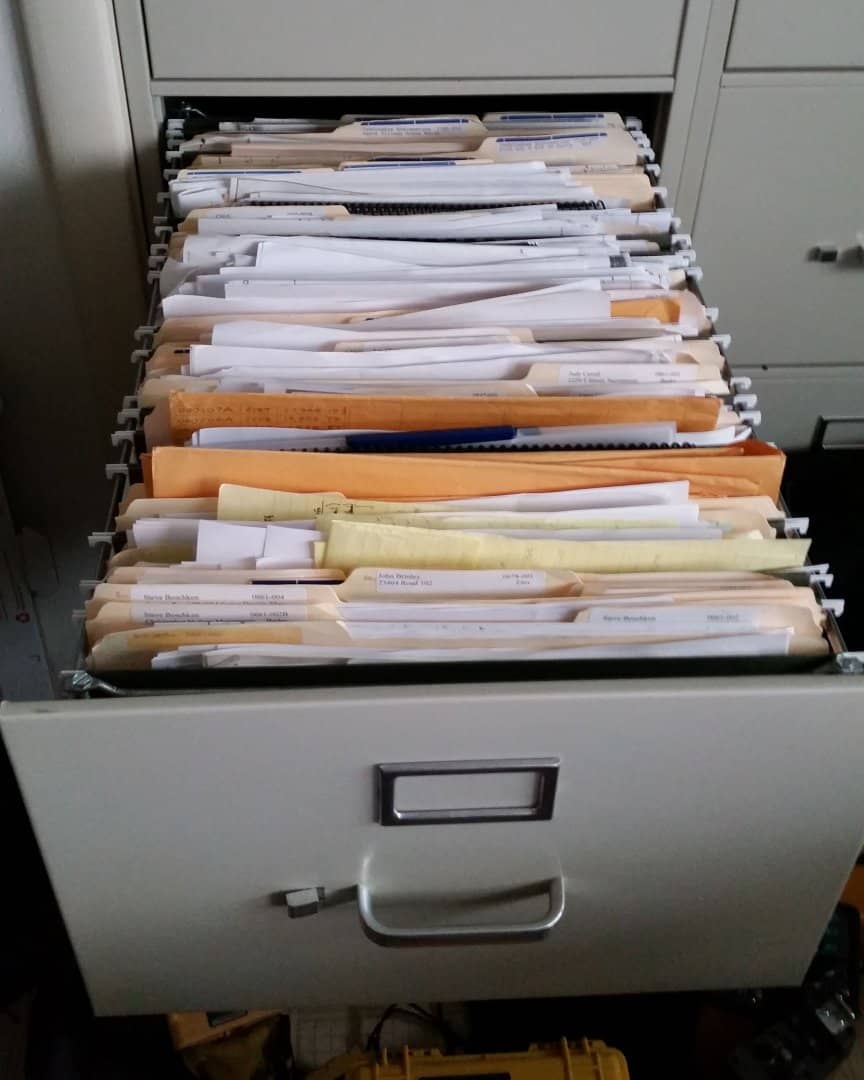
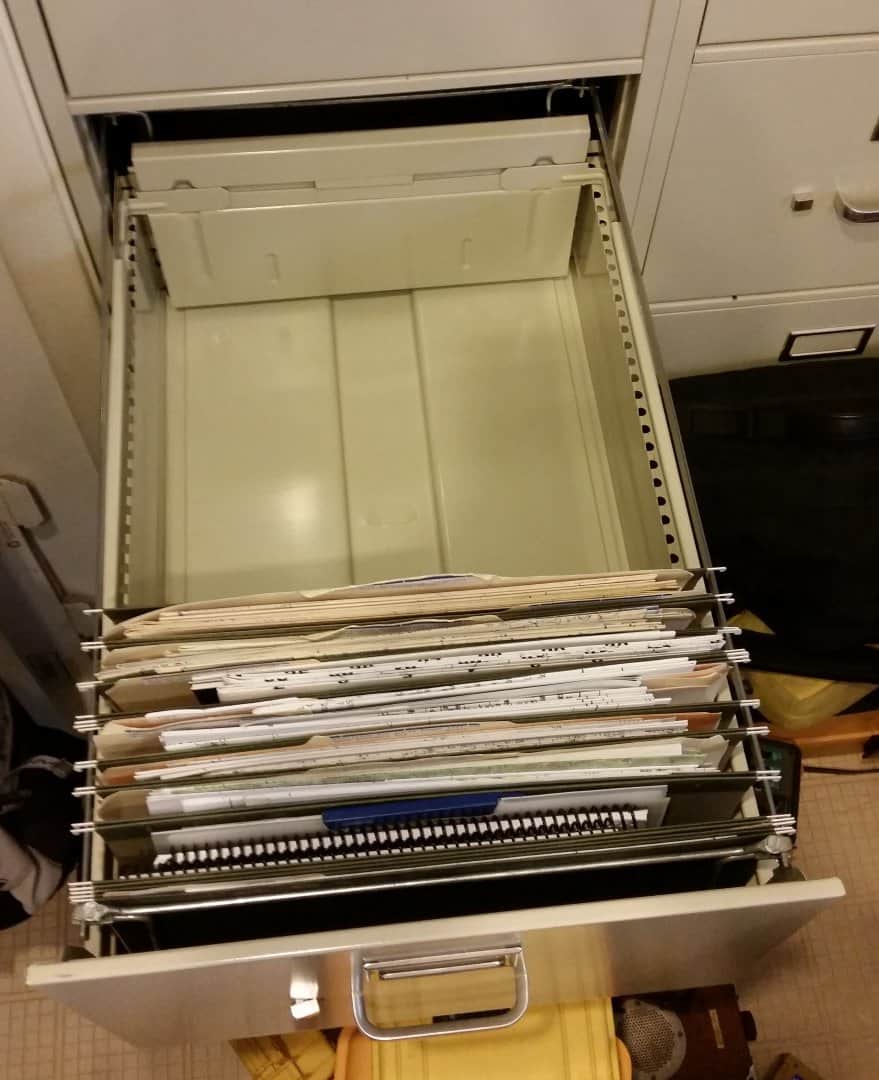
3. So far I've gotten through 1 file drawer. That reduced the drawer contents to about 25%, and also generated about 5 reams of paper that's printed only on 1 side. I use this paper for check prints and field sheets, so I've been investing the time in separating it out. By the time I'm done I think I'll have enough to take me to the end of my career. Extrapolating the space savings, I should be able to eliminate 3 of my 4 cabinets by the time I'm done, which would be great!
4. Another strategic decision I made is not to spend much time trying to eliminate file contents. Unless a piece of paper is clearly of no further value at a glance, I scan it. Check stubs, stakeout diagrams, fax cover sheets, it all goes in the scanner. I'm not reordering file contents, either; the sheets go into the scanner the way they come out of the file folder, which is often not in any particular order. (Sometimes they go into the scanner in the order in which I pick them up off the floor after dropping a handful.)
5. That 1 file drawer I've scanned has generated about 1.75GB of PDFs. Extrapolating again to my 16 drawers, that will mean about 28 GB of disk. That's insignificant in light of the cost of disk space these days; I currently have a 2TB primary drive, so I won't notice the hit. The cost of storing that 28 GB in the cloud will be a little over a dollar a year, another insignificant cost.
6. Most of the PDFs I'm generating are in the 5MB-20MB range. The biggest so far is around 400MB, with a few in the 200MB range. Those would be a nuisance to load if I had to open them frequently, but I think that most of these files will never be opened again. I just want to make sure that I *can* open them if I need to.
My tentative conclusion is that the scanner was a very worthwhile purchase, and I expect to be very happy with the final result.
Posted : October 17, 2015 9:50 pm

Translate
▼
English
Spanish
French
German
Italian
Portuguese
Russian
Chinese
Japanese
Korean
Arabic
Hindi
Dutch
Polish
Turkish
Vietnamese
Thai
Swedish
Danish
Finnish
Norwegian
Czech
Hungarian
Romanian
Greek
Hebrew
Indonesian
Malay
Ukrainian
Bulgarian
Croatian
Slovak
Slovenian
Serbian
Lithuanian
Latvian
Estonian
Last week I realized I could not cram any more file folders into my four filing cabinets. I didn't want to buy another cabinet so I got busy purging the obvious: All the dockets in those file folders. Some projects, like the Foothills Mall, have (now had) two bulging file folders with just easement dockets. Out they went, along with a whole bunch of their cousins. I easily cleared out over two feet of files, and it didn't take long.
Not as bad as the large firm where I once worked. Everyone knew the problem was every file folder contained three copies of almost everything, so we could have reduced the file space by two-thirds, but nobody had the time to go through them.
ps A good rule is, if in doubt throw it out.
Posted : October 17, 2015 10:06 pm

Translate
▼
English
Spanish
French
German
Italian
Portuguese
Russian
Chinese
Japanese
Korean
Arabic
Hindi
Dutch
Polish
Turkish
Vietnamese
Thai
Swedish
Danish
Finnish
Norwegian
Czech
Hungarian
Romanian
Greek
Hebrew
Indonesian
Malay
Ukrainian
Bulgarian
Croatian
Slovak
Slovenian
Serbian
Lithuanian
Latvian
Estonian
Bruce Small, post: 340922, member: 1201 wrote: ....Not as bad as the large firm where I once worked. Everyone knew the problem was every file folder contained three copies of almost everything....
Major pet peeve of mine. I hate leaving files with every test plot and iteration printout in them. Makes the files worse than useless.
Posted : October 18, 2015 1:57 am

Translate
▼
English
Spanish
French
German
Italian
Portuguese
Russian
Chinese
Japanese
Korean
Arabic
Hindi
Dutch
Polish
Turkish
Vietnamese
Thai
Swedish
Danish
Finnish
Norwegian
Czech
Hungarian
Romanian
Greek
Hebrew
Indonesian
Malay
Ukrainian
Bulgarian
Croatian
Slovak
Slovenian
Serbian
Lithuanian
Latvian
Estonian
Probably a good idea thinning out the files even if you are going to scan eventually, then you don't have to go through deciding (or someone else deciding) if a document should be tossed.
Also, be very careful if you decide to hire someone to scan your files. They likely won't worry about looking @ the product to make sure it is a good scan. That, unfortunately, means that you have to do it yourself, or you have to have a good employee who you know will be extra-careful in deciding if it's a good scan. (I say "unfortunately" because you can't just hire a laborer to run the paperwork through the machine, but you need skilled help)
Posted : October 18, 2015 6:44 am
Translate
▼
English
Spanish
French
German
Italian
Portuguese
Russian
Chinese
Japanese
Korean
Arabic
Hindi
Dutch
Polish
Turkish
Vietnamese
Thai
Swedish
Danish
Finnish
Norwegian
Czech
Hungarian
Romanian
Greek
Hebrew
Indonesian
Malay
Ukrainian
Bulgarian
Croatian
Slovak
Slovenian
Serbian
Lithuanian
Latvian
Estonian
"....5. That 1 file drawer I've scanned has generated about 1.75GB of PDFs. Extrapolating again to my 16 drawers, that will mean about 28 GB of disk....
pdf editor programs, the good ones, have a "reduce file size" or "optimize file" command. This function will reduce the file size of a scanned document by about 80% without sacrificing image quality. While you may not be concerned about disk space such optimized files do load and navigate a lot quicker which makes it worth the extra effort.
Posted : October 18, 2015 8:20 am

Translate
▼
English
Spanish
French
German
Italian
Portuguese
Russian
Chinese
Japanese
Korean
Arabic
Hindi
Dutch
Polish
Turkish
Vietnamese
Thai
Swedish
Danish
Finnish
Norwegian
Czech
Hungarian
Romanian
Greek
Hebrew
Indonesian
Malay
Ukrainian
Bulgarian
Croatian
Slovak
Slovenian
Serbian
Lithuanian
Latvian
Estonian
We have a significant amount of our files scanned. I would recommend that you try to verify each and every PDF for clarity. That is probably the biggest issue when doing bulk scanning. You don't see them and then the one time you need it, you can't read it and in Jim's situation, he purged the document so it is gone. Jim, how are you keeping track of the files you scan in a database?
From my memory, I believe I remember once that Walt Rollibard said in a class that I was attending that he doesn't keep a copy of anything. Not even the plats he has generated because there is only one and it is the original he gave his client.
Posted : October 18, 2015 8:33 am
Topic starter
Translate
▼
English
Spanish
French
German
Italian
Portuguese
Russian
Chinese
Japanese
Korean
Arabic
Hindi
Dutch
Polish
Turkish
Vietnamese
Thai
Swedish
Danish
Finnish
Norwegian
Czech
Hungarian
Romanian
Greek
Hebrew
Indonesian
Malay
Ukrainian
Bulgarian
Croatian
Slovak
Slovenian
Serbian
Lithuanian
Latvian
Estonian
Scotland, post: 340933, member: 559 wrote: We have a significant amount of our files scanned. I would recommend that you try to verify each and every PDF for clarity. That is probably the biggest issue when doing bulk scanning. You don't see them and then the one time you need it, you can't read it and in Jim's situation, he purged the document so it is gone. Jim, how are you keeping track of the files you scan in a database?
I'm reviewing each file as it's scanned, because I'm purging the irrelevant pages. I'm scanning double-sided because a lot of the documents are legit on both sides, but a lot of those that aren't are printed on used (on one side) paper. I only want to keep the legit pages.
As far as keeping track goes, that's easy: I'm scanning the contents of each job's paper folder (some jobs fill multiple folders) into a single PDF with the job name and the word "Archive" (e.g. "1234-001 Archive.pdf").
Posted : October 18, 2015 10:47 am

Translate
▼
English
Spanish
French
German
Italian
Portuguese
Russian
Chinese
Japanese
Korean
Arabic
Hindi
Dutch
Polish
Turkish
Vietnamese
Thai
Swedish
Danish
Finnish
Norwegian
Czech
Hungarian
Romanian
Greek
Hebrew
Indonesian
Malay
Ukrainian
Bulgarian
Croatian
Slovak
Slovenian
Serbian
Lithuanian
Latvian
Estonian
Memory is cheap when it comes to hotplugin hard drives and thumb drives and SD cards to carry our files with us and to archive our data and for the importance of what it stores and how easy it can be retrieved on most any computer and smart phone.
I print to pdf as typset quality and scan documents in the office at min of 600dpi for the same reasons
Most of my newly acquired deed records scans come from CAMSCANNER app on my phone and I use the HD setting for the camera.
End result is that the proof is in the print being produced.
If there is any doubt, it only takes a few clicks to modify the scan and take multiple copies of the same information, b/w and color if needed.
I have received some of the almost worthless scans, not to speak of faxes thru the years (computer fax program worth every penny) that had to be printed as an image because the quality was so low.
Read up on searching for keywords within pdf files. Some of the deeds around here can be several hundred pages each and having to print out the whole thing can break the office budget.
I use editing, combining pages and deleting pages and inserting other stuff and converting pdf into text files for optimal use of the data to produce unique products for each job.
There is a great program called Irfranview that is free and has many addon utilities that will batch convert files into a single tiff or pdf and does things that Adobe Pro will not do.
:gammon:
Posted : October 18, 2015 12:32 pm
Topic starter
Translate
▼
English
Spanish
French
German
Italian
Portuguese
Russian
Chinese
Japanese
Korean
Arabic
Hindi
Dutch
Polish
Turkish
Vietnamese
Thai
Swedish
Danish
Finnish
Norwegian
Czech
Hungarian
Romanian
Greek
Hebrew
Indonesian
Malay
Ukrainian
Bulgarian
Croatian
Slovak
Slovenian
Serbian
Lithuanian
Latvian
Estonian
Before:
After:
Posted : October 18, 2015 6:57 pm

Translate
▼
English
Spanish
French
German
Italian
Portuguese
Russian
Chinese
Japanese
Korean
Arabic
Hindi
Dutch
Polish
Turkish
Vietnamese
Thai
Swedish
Danish
Finnish
Norwegian
Czech
Hungarian
Romanian
Greek
Hebrew
Indonesian
Malay
Ukrainian
Bulgarian
Croatian
Slovak
Slovenian
Serbian
Lithuanian
Latvian
Estonian
If you are tossing the files (which I don't recommend), can you simply cut the corner of the document off in order to quickly get rid of the staples?
Seems like it would be much quicker.
Posted : October 19, 2015 10:23 am
Topic starter
Translate
▼
English
Spanish
French
German
Italian
Portuguese
Russian
Chinese
Japanese
Korean
Arabic
Hindi
Dutch
Polish
Turkish
Vietnamese
Thai
Swedish
Danish
Finnish
Norwegian
Czech
Hungarian
Romanian
Greek
Hebrew
Indonesian
Malay
Ukrainian
Bulgarian
Croatian
Slovak
Slovenian
Serbian
Lithuanian
Latvian
Estonian
imaudigger, post: 341002, member: 7286 wrote: If you are tossing the files (which I don't recommend), can you simply cut the corner of the document off in order to quickly get rid of the staples?
I *am* tossing the files -- the point of the project is to reduce the amount of space the paper files take up, and the only way I know of doing that is to get rid of the paper they contain.
Good idea about clipping the corners, though. It works fine on the docs that don't have many pages. I still have lots of stapled documents with 20+ sheets (e.g., title reports, big deeds), so I can't put my staple puller away just yet.
Posted : October 19, 2015 10:47 am

Translate
▼
English
Spanish
French
German
Italian
Portuguese
Russian
Chinese
Japanese
Korean
Arabic
Hindi
Dutch
Polish
Turkish
Vietnamese
Thai
Swedish
Danish
Finnish
Norwegian
Czech
Hungarian
Romanian
Greek
Hebrew
Indonesian
Malay
Ukrainian
Bulgarian
Croatian
Slovak
Slovenian
Serbian
Lithuanian
Latvian
Estonian
Is there a screen on the scanner? Or do you open each PDF after it's scanned to check? I have 12 filing cabinets full! I need to do this too.
Posted : October 20, 2015 11:22 am
Topic starter
Translate
▼
English
Spanish
French
German
Italian
Portuguese
Russian
Chinese
Japanese
Korean
Arabic
Hindi
Dutch
Polish
Turkish
Vietnamese
Thai
Swedish
Danish
Finnish
Norwegian
Czech
Hungarian
Romanian
Greek
Hebrew
Indonesian
Malay
Ukrainian
Bulgarian
Croatian
Slovak
Slovenian
Serbian
Lithuanian
Latvian
Estonian
Andy J, post: 341169, member: 44 wrote: Is there a screen on the scanner? Or do you open each PDF after it's scanned to check? I have 12 filing cabinets full! I need to do this too.
No display on the scanner, but opening the files with a PDF editor/reader is painless enough. The included software has options to streamline the workflow, but I haven't needed to investigate them.
Posted : October 20, 2015 4:12 pm